

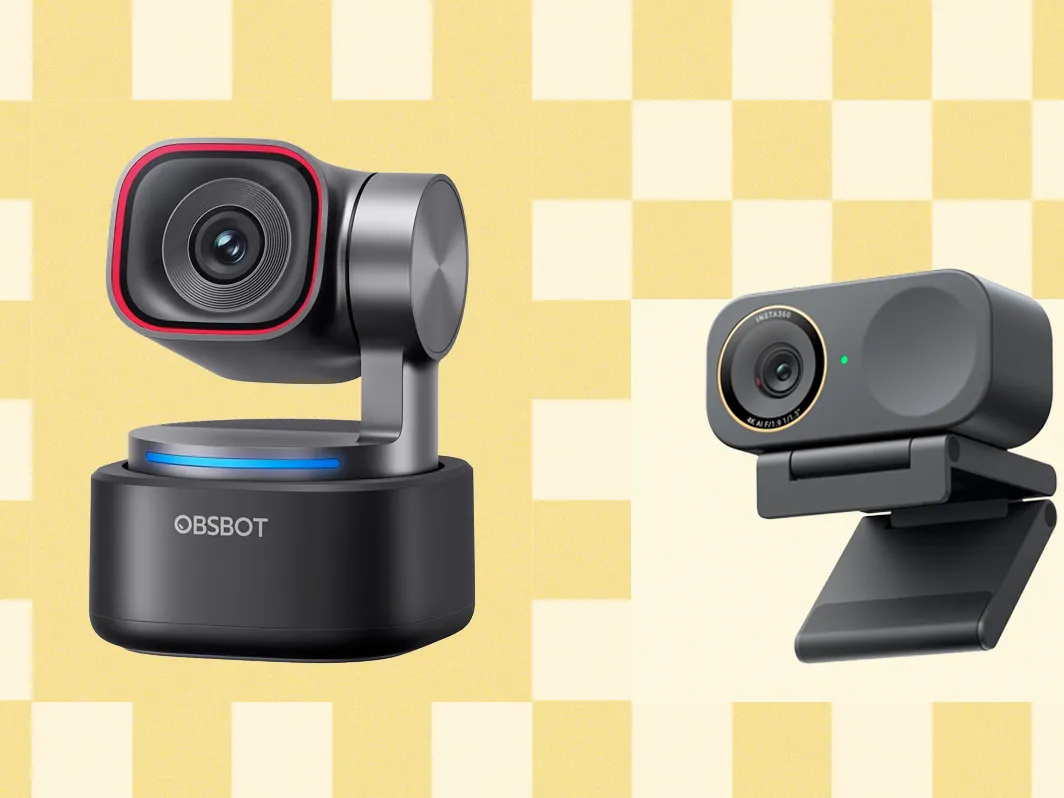
The webcams built into modern laptops are improving, but they remain limited by thin screens, small image sensors, fixed positioning, and basic microphones. An external webcam provides more control over framing, lighting, focus, and camera placement.
Buying one is not simply a matter of choosing the highest resolution. Sensor size, frame rate, autofocus, field of view, software, mounting options, and room lighting all influence the final result.
Recommended Webcams at a Glance
| Webcam | Maximum Resolution | Standout Feature | Recommended For |
|---|---|---|---|
| Logitech Brio 100 | 1080p | Affordable with integrated privacy shutter | Everyday video meetings |
| Logitech MX Brio | 4K at 30fps | Strong image quality and adjustable framing | Professional remote work |
| Insta360 Link 2 | 4K | Gimbal-based AI tracking | Teachers, presenters, and demonstrations |
| Elgato Facecam 4K | 4K at 60fps | Advanced manual controls and smooth video | Streaming and content creation |
Resolution Is Important—but It Is Not Everything
Resolution describes the number of pixels in an image. A 1080p webcam produces Full HD video, while a 4K model captures substantially more detail.
For ordinary meetings, 1080p is usually sufficient. Popular conferencing platforms may compress or reduce video quality depending on account settings, bandwidth, computer performance, and the number of people in the call.
A 4K webcam becomes more useful when recording videos, creating courses, live-streaming, or cropping the image without losing as much detail. The additional resolution also gives software more room to zoom and reframe.
However, an inexpensive 4K camera with a small sensor and poor image processing can look worse than a well-designed 1080p model. Resolution should be evaluated alongside lighting performance, sensor quality, and lens design.
Understanding Frame Rate
Frame rate measures how many images the webcam captures each second. Video at 30 frames per second is adequate for interviews, meetings, and presentations where the subject remains relatively still.
A 60fps webcam produces smoother movement. This can benefit live demonstrations, exercise instruction, gaming streams, product presentations, and videos involving frequent hand movements.
Higher frame rates also require more light, processing power, USB bandwidth, and network capacity. In a dim room, 30fps may produce a cleaner image because the camera can use a slower shutter speed to collect more light.
Recommended Webcams
Logitech Brio 100: An Affordable Laptop Upgrade
The Logitech Brio 100 records at Full HD 1080p and includes automatic light balancing, a built-in microphone, and an integrated privacy shutter.
It is designed for straightforward video calling rather than professional production. There is no advanced motorized tracking or 4K recording, but it can still provide a meaningful improvement over an older laptop camera.
The privacy shutter is especially useful for a camera that remains attached to a computer. Sliding it closed physically blocks the lens rather than relying only on software settings.
Recommended for: Students, home-office workers, and anyone wanting an inexpensive, uncomplicated webcam for Zoom, Microsoft Teams, or Google Meet.
Logitech MX Brio: A Strong Professional Webcam
The Logitech MX Brio records in 4K at 30fps or 1080p at 60fps. This gives users the choice between maximum detail and smoother motion.
Its field of view can be adjusted between 65, 78, and 90 degrees through compatible Logitech software. A narrow setting works well for a head-and-shoulders meeting, while the wider option can include additional people or more of the room.
The webcam also includes autofocus, four-times digital zoom, dual beamforming microphones with noise reduction, a built-in privacy shutter, and a detachable USB-C cable.
Show Mode allows the camera to be tilted downward to display notes, sketches, or physical objects on the desk. This can be valuable for teachers, consultants, designers, and anyone explaining a product during a call.
Recommended for: Professionals who spend several hours each week in video meetings and want reliable 4K image quality without moving into a complicated creator setup.
Insta360 Link 2: For Presenters Who Move Around
The Insta360 Link 2 is a 4K webcam mounted on a two-axis gimbal. Its AI tracking can physically pan and tilt the camera to follow a presenter around the room.
This makes it especially useful for teachers, trainers, fitness instructors, product demonstrators, and people who do not remain seated throughout a presentation.
Phase-detection autofocus helps the camera respond when the subject moves or holds an object toward the lens. DeskView mode can tilt the camera downward to show documents, drawings, or products, while gesture controls allow certain functions to be operated without touching the computer.
The Link 2 also provides customizable tracking areas. A presenter can define boundaries beyond which the camera should stop following, helping prevent unintended parts of the room from appearing.
Recommended for: Dynamic presentations, remote teaching, demonstrations, and small meeting rooms.
Alternative: The Insta360 Link 2C offers similar imaging features without the physical gimbal, making it more suitable for someone who remains seated.
Elgato Facecam 4K: Built for Creators
The Elgato Facecam 4K can capture 4K video at 60fps and supports HDR. It uses a 1/1.8-inch Sony STARVIS 2 sensor and provides extensive image controls through Elgato’s Camera Hub software.
Its 90-degree field of view can accommodate wider scenes, while a standard 49mm filter thread allows compatible photographic filters to be attached.
Unlike many general-purpose webcams, the Facecam 4K uses fixed focus optimized for typical desk distances. Fixed focus avoids distracting focus hunting, but it is less flexible when objects are repeatedly moved close to the camera.
The camera intentionally does not include a microphone. Elgato expects users to pair it with a dedicated USB microphone, audio interface, or headset. This increases the overall setup cost but makes sense for creators who already prioritize audio quality.
Recommended for: Streamers, YouTube creators, course producers, and users wanting 4K60 recording with detailed manual control.
Autofocus or Fixed Focus?
Autofocus adjusts the lens to keep the subject sharp as the distance changes. It is useful when showing products, moving around, or bringing documents closer to the camera.
Poor autofocus can repeatedly search for a subject, causing the image to become soft during a call. Higher-quality cameras use faster and more accurate systems to reduce this behavior.
Fixed-focus webcams are optimized for a specific range. They can provide consistent results for a person sitting at a desk, but objects positioned too close or too far away may appear blurred.
Choose autofocus for movement and demonstrations. Fixed focus is reasonable for a controlled streaming setup where the subject remains within the intended distance.
Field of View and Camera Framing
A narrow field of view concentrates on one person and reveals less of the surrounding room. This is usually preferable for individual interviews and professional calls.
A wide field of view can include several people, a whiteboard, or a larger background. It is more suitable for small meeting rooms and presentations but may also reveal clutter or make the subject appear smaller.
Webcams with adjustable fields of view provide greater flexibility. Remember that digital zoom and cropping reduce the amount of usable image detail, particularly on lower-resolution cameras.
Why Lighting Matters More Than an Expensive Camera
Even a premium webcam will struggle when a bright window is positioned behind the subject. The camera may expose for the window and leave the person’s face dark.
Position the primary light in front of you and slightly above eye level. A window can provide excellent natural light during the day, while a small LED panel or diffused desk light offers more consistent results.
Avoid relying entirely on a ceiling light, which can create shadows beneath the eyes. Also reduce strong mixed lighting—for example, blue daylight from one side and warm artificial light from the other.
Do You Need a Separate Microphone?
Built-in webcam microphones are convenient, but their distance from the speaker allows more room echo, keyboard noise, and background sound to enter the recording.
A headset microphone generally produces clearer speech than a webcam microphone. A dedicated USB microphone can provide an even more natural sound when positioned correctly.
For occasional meetings, the microphone in the Logitech Brio 100 or MX Brio may be sufficient. For webinars, courses, podcasts, and professional videos, audio should receive the same attention as the camera.
Privacy and Security Features
A physical privacy shutter provides visible confirmation that the camera cannot record an image. This is more reassuring than relying solely on an indicator light or software permission.
Keep webcam software and firmware updated, download applications only from the manufacturer, and review which programs have camera and microphone access.
Motorized webcams may also provide a privacy position that points the lens downward when inactive. Confirm how the feature works and whether it requires software to activate.
Mounting and Camera Position
Place the webcam close to eye level. A camera positioned far below the face produces an unflattering angle, while one mounted too high can make eye contact feel unnatural.
Most webcams clip onto a monitor, but a tripod can provide better positioning. Check for a standard quarter-inch mounting thread if you plan to use a tripod, boom arm, or dedicated camera mount.
Also examine the cable. A detachable cable is easier to replace and offers more flexibility than a permanently attached short cable.
Frequently Asked Questions
Is 4K necessary for Zoom or Teams?
No. A good 1080p webcam is sufficient for most meetings. A 4K model becomes more valuable for recording, streaming, cropping, and professional content production.
Can I use a webcam with a USB hub?
Usually, but high-resolution and high-frame-rate cameras may require significant USB bandwidth. Connect the webcam directly to the computer if you experience freezing, reduced resolution, or connection problems.
Why does my expensive webcam still look grainy?
Insufficient light forces the camera to increase sensor gain, which introduces visible noise. Improve the lighting before replacing the webcam.
Can a webcam replace a professional camera?
A premium webcam is easier to configure and use for meetings or streaming. A mirrorless or DSLR camera can deliver better image quality but requires compatible output, power, mounting, and often a capture device.
Final Recommendation
The Logitech Brio 100 is a practical choice for basic meetings on a limited budget. The MX Brio provides the strongest balance for professional remote work, combining 4K detail, autofocus, adjustable framing, microphones, and privacy controls.
Choose the Insta360 Link 2 if tracking and physical movement are central to your presentations. The Elgato Facecam 4K is the more appropriate option for creators who want 4K60 video, detailed controls, and a dedicated audio setup.
Whichever model you choose, invest a little time in lighting, camera height, background organization, and microphone placement. Those improvements frequently make a larger difference than moving from one premium webcam to another.